What this does
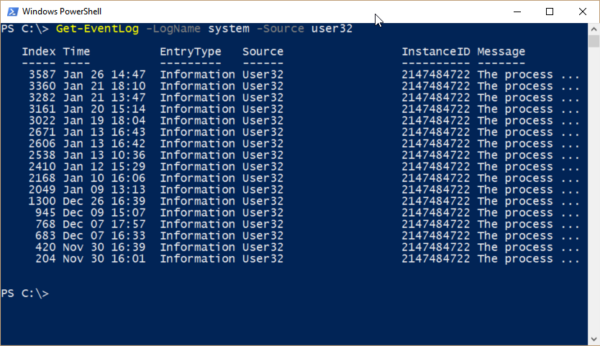
This PowerShell command retrieves recent system error events from Windows. It allows you to quickly see what has gone wrong without opening Event Viewer and manually filtering logs.
When you’d use this
- A PC has crashed or restarted unexpectedly
- Applications are failing without clear messages
- You need evidence before deeper troubleshooting
- To confirm whether an issue is recurring
PowerShell command (copy and paste)
Get-WinEvent -LogName System -MaxEvents 20 |
Where-Object {$_.LevelDisplayName -eq "Error"}
What the output means
- TimeCreated – when the error occurred
- ProviderName – the service or component involved
- Message – a description of the error
These entries often explain why a system is unstable.
Common mistakes to avoid
- Assuming every error is critical (many are informational)
- Ignoring the time of the error relative to the problem
- Overlooking repeating errors, which are usually more important
Efficiency tip (last 24 hours only)
Get-WinEvent -LogName System |
Where-Object {
    $_.LevelDisplayName -eq "Error" -and
    $_.TimeCreated -gt (Get-Date).AddHours(-24)
}
This filters out older noise and focuses on recent problems.
Why this improves efficiency
- Faster than Event Viewer
- Removes unnecessary log clutter
- Ideal for remote support
- Helps pinpoint root causes quickly
Related PowerShell efficiency posts
- PowerShell Efficiency: The Fast Way to Manage Windows
- Check when a Windows PC was last restarted
- Check running services quickly using PowerShell
Related Posts
- PowerShell – The Fast Way to Manage Windows
- Test if a Network Port Is Open Using PowerShell
- Check Disk Space in Seconds Using PowerShell
- Find and Close a Stuck Application Using PowerShell
- Check When a Windows PC Was Last Restarted
- Export PowerShell Results to CSV for Reporting
Export Errors to a CSV File for Documentation and Support
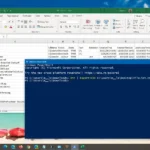
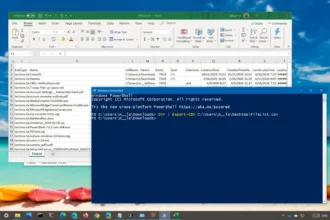
If you need to document errors for compliance, share them with Microsoft Support, analyse trends over time, or build a troubleshooting record, exporting to a CSV file is far more practical than taking screenshots or copying console output. PowerShell makes this straightforward, and CSV files can be opened in Excel for sorting, filtering, and sharing with colleagues or external support vendors.
Basic export command:
Get-WinEvent -LogName System -MaxEvents 100 | Where-Object {$_.LevelDisplayName -eq "Error"} | Select-Object TimeCreated, ProviderName, EventId, Message | Export-Csv -Path "C:LogsSystemErrors.csv" -NoTypeInformation
This exports 100 recent errors to a CSV file with four columns: when the error occurred, which service or driver triggered it, the event ID number, and the full error message text. The -NoTypeInformation flag keeps the output clean without PowerShell metadata headers—you can remove it if you need technical type information, but most people prefer the simpler version for sharing with support teams.
Why CSV exports are essential for troubleshooting:
- Share with vendors – Microsoft Support engineers and third-party hardware vendors can analyse the raw data without relying on your interpretation or screenshots
- Identify patterns – open in Excel to sort by ProviderName or timestamp, revealing repeated errors from the same driver or service
- Compliance and documentation – archive error snapshots for audit trails, incident investigations, support ticket records, or regulatory requirements
- Track resolution – run the export on different dates to confirm whether errors have stopped, returned, or are newly appearing
- Automate monitoring – schedule this command to run nightly and build a rolling error log for early warning of system degradation
Adding the computer name for multi-machine environments:
If you support multiple machines, add the computer name to each row so you know which device each error came from:
Get-WinEvent -LogName System -MaxEvents 100 | Where-Object {$_.LevelDisplayName -eq "Error"} | Select-Object @{Name="Computer";Expression={$env:COMPUTERNAME}}, TimeCreated, ProviderName, EventId, Message | Export-Csv -Path "C:LogsSystemErrors.csv" -NoTypeInformation
This adds a “Computer” column, making it easy to identify which machine each error came from when centralising reports from across your environment. You can extend this further to include severity level, triggering user account, or custom fields based on your specific investigation requirements.