What this does
Test if a Network Port Is Open, This PowerShell command checks whether a specific network port is reachable on a remote device. It helps confirm if a service is accessible or being blocked by a firewall.
When you’d use this
- An application cannot connect to a server
- You need to confirm a service is listening
- Firewall or network rules are suspected
- Before escalating a connectivity issue
PowerShell command (copy and paste)
Test-NetConnection google.com -Port 443
Replace:
google.comwith the server or device name443with the port you want to test
What the output means
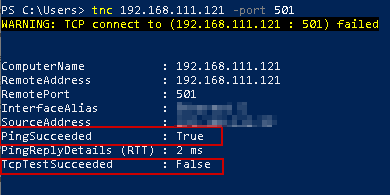
- TcpTestSucceeded : True – the port is open and reachable
- TcpTestSucceeded : False – the port is blocked or unreachable
Other useful fields include:
- RemoteAddress – the resolved IP address
- PingSucceeded – whether the host responded to ping
Common mistakes to avoid
- Testing the wrong port number
- Forgetting VPNs can change routing
- Assuming a failed test always means a firewall issue
Efficiency tip (skip ping, test port only)
Test-NetConnection servername -Port 3389 -InformationLevel Quiet
This returns a simple True or False, ideal for quick checks or scripts.
Why this improves efficiency
- Faster than installing third-party tools
- Built into Windows
- Clear, unambiguous results
- Ideal for remote troubleshooting
Related PowerShell efficiency posts
- PowerShell Efficiency: The Fast Way to Manage Windows
- Flush DNS cache safely using PowerShell
- View IP and DNS information quickly using PowerShell
Related Posts
- PowerShell – The Fast Way to Manage Windows
- Flush DNS Cache Safely Using PowerShell
- View IP and DNS Information Quickly Using PowerShell
- Pull Recent System Errors Using PowerShell
- Check Running Services Quickly Using PowerShell
- Check When a Windows PC Was Last Restarted
Testing Multiple Ports in One Go
When you need to verify whether several services are listening on a remote server, running individual Test-NetConnection commands for each port becomes tedious and error-prone. PowerShell’s ForEach-Object makes it simple to test multiple ports in sequence and generate a summary of results without manual copy-pasting.
Here’s a practical example to test common web and remote access ports:
80, 443, 3389, 5985 | ForEach-Object {
    $port = $_
    $result = Test-NetConnection -ComputerName servername -Port $port -InformationLevel Quiet
    Write-Host "Port $port : $(if ($result) { 'OPEN' } else { 'CLOSED' })"
}
Replace servername with your target hostname or IP address. This outputs a simple list showing which ports are reachable, ideal for quick validation during server setup or troubleshooting.
For a more detailed report, capture the results in an array and export to CSV for documentation and logging:
$ports = 80, 443, 3389, 8080
$results = @()

foreach ($port in $ports) {
    $test = Test-NetConnection -ComputerName servername -Port $port
    $results += [PSCustomObject]@{
        Port = $port
        Status = $test.TcpTestSucceeded
        RemoteIP = $test.RemoteAddress
        Timestamp = Get-Date
    }
}

$results | Export-Csv -Path "C:Tempport_test_results.csv" -NoTypeInformation
This script creates a timestamped CSV file with results, useful for documentation, change records, and troubleshooting. The CSV includes resolved IP addresses, which is particularly helpful when dealing with multiple network interfaces or DNS inconsistencies that might cause unexpected routing behaviour.
Why this matters: Testing ports individually is inefficient when validating a new server’s network configuration, troubleshooting firewall changes, or confirming migration readiness. Batch testing saves significant time and produces consistent, auditable records. Save these scripts in your admin toolkit—you’ll reuse them repeatedly whenever you provision new infrastructure or diagnose connectivity issues.
Verify Your Service is Actually Listening Locally
Before testing connectivity from a remote machine, confirm that the service you’re trying to reach is genuinely listening on the target port. A failed Test-NetConnection might mean the service hasn’t started, is listening on a different port, is bound to a specific network interface, or is configured with access restrictions.
Use netstat to check which ports are actively listening on your server:
netstat -ano | findstr LISTENING
This lists all listening ports with their Process IDs. Look for your target port. If you’re testing port 3389 (RDP), you should see a line like:
TCP 0.0.0.0:3389 0.0.0.0:0 LISTENING 456
The number at the end (456) is the Process ID. Identify which application owns it:
tasklist /FI "PID eq 456"
Common service ports to check:
- 3389 – Remote Desktop Protocol (RDP)
- 1433 – SQL Server
- 5432 – PostgreSQL
- 3306 – MySQL
- 80 – HTTP web server
- 443 – HTTPS web server
- 5900 – VNC remote access
If your port doesn’t appear in the netstat output, the service isn’t running or listening. Check application logs and restart the service if needed. If the port appears as 127.0.0.1:3389 instead of 0.0.0.0:3389, it’s bound to localhost only—remote connections will always fail regardless of firewall configuration. You’ll need to reconfigure the service to bind to all interfaces.
To check for a specific port quickly:
netstat -ano | findstr :443
Once you’ve confirmed the service is running and listening locally, use Test-NetConnection from a remote machine to diagnose firewall or network connectivity issues. This two-step approach separates application problems from network problems, making troubleshooting systematic and significantly faster.