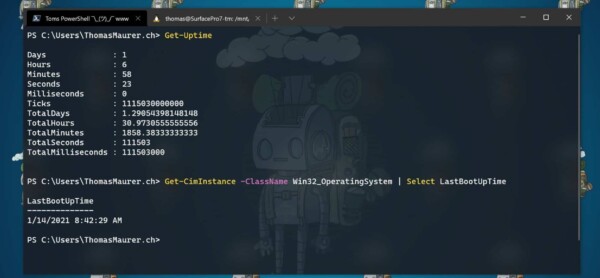
What this does
This PowerShell command shows the exact date and time a Windows computer was last restarted. It is one of the quickest ways to confirm whether a reboot may resolve performance or update issues.
When you’d use this
- A PC is running slowly
- Windows Updates are pending
- An application is behaving unexpectedly
- You want a fast system health check
PowerShell command (copy and paste)
(Get-CimInstance Win32_OperatingSystem).LastBootUpTime
What the output means
- The date and time displayed is the last full system boot
- If this was several days or weeks ago, a restart is often recommended
- This confirms a real reboot, not just sleep or lock screen usage
Common mistakes to avoid
- Confusing sleep or hibernate with a restart
- Assuming updates are complete without checking reboot time
- Forgetting Fast Startup can affect perceived uptime
Efficiency tip (human-readable format)
(Get-CimInstance Win32_OperatingSystem).LastBootUpTime.ToString("dd-MMM-yyyy HH:mm")
This format is easier to read and ideal for:
- Support notes
- Screenshots for users
- Quick reporting
Why this improves efficiency
- No need to open Event Viewer
- No clicking through system menus
- Works instantly on most Windows PCs
- Safe to run without administrator access
Related PowerShell efficiency posts
- PowerShell Efficiency: The Fast Way to Manage Windows
- Check disk space in seconds using PowerShell
- Find and close a stuck application with PowerShell
Related Posts
- PowerShell – The Fast Way to Manage Windows
- Check Disk Space in Seconds Using PowerShell
- Check Running Services Quickly Using PowerShell
- Find and Close a Stuck Application Using PowerShell
- View IP and DNS Information Quickly Using PowerShell
- Test if a Network Port Is Open Using PowerShell
Checking uptime on remote computers
If you’re managing multiple PCs or supporting other users across your organisation, you can check the restart time on a remote computer without logging in directly. This is useful for IT support, troubleshooting issues on colleague machines, or monitoring server uptime across your network.
To check a remote PC, add the -ComputerName parameter to the command:
(Get-CimInstance Win32_OperatingSystem -ComputerName "COMPUTER-NAME").LastBootUpTime
Replace COMPUTER-NAME with the actual computer name or IP address. You can also format the output for readability:
(Get-CimInstance Win32_OperatingSystem -ComputerName "COMPUTER-NAME").LastBootUpTime.ToString("dd-MMM-yyyy HH:mm")
This works provided the remote computer is:
- Connected to the same network
- Switched on and accessible
- Your user account has permissions to query it (usually automatic on domain networks)
If the command fails, check that Windows Firewall and remote management are enabled on the target PC. Some organisations block remote queries for security reasons, so confirm with your IT team first.
For checking multiple computers at once, you can create a simple script. List your computer names in a text file (one per line) and run:
$computers = Get-Content "C:computers.txt"

foreach ($computer in $computers) {

  $bootTime = (Get-CimInstance Win32_OperatingSystem -ComputerName $computer).LastBootUpTime

  Write-Host "$computer : $bootTime"

}
This is particularly valuable if you’re verifying that critical servers or workstations have been restarted after maintenance or updates. You can run this from any machine with network access and capture the results for your records or escalation reports.
What uptime tells you about system health
Once you know when a PC was last restarted, the real diagnostic work begins. Uptime patterns reveal important information about system health and maintenance compliance.
Normal uptime is typically 1 to 7 days. Most organisations have PCs restart weekly or fortnightly through scheduled maintenance windows, Windows Updates, or nightly shutdown policies.
Very high uptime (months or years) is often a problem. A PC that hasn’t restarted in 6 months suggests:
- Windows Updates are pending and not being applied
- Security patches are installed but not activated without a reboot
- The system is not following your maintenance policy
- Memory leaks may be degrading performance
Investigate by checking Windows Update history and running updates forcefully. If a critical security patch is waiting, that’s a compliance risk.
Very low uptime (hours or days, repeated) suggests instability. If a user’s PC restarts multiple times per week, investigate:
- Driver issues (particularly GPU or network drivers)
- Hardware failures (failing RAM, overheating)
- Malware or virus infections
- Power settings or BIOS issues
Run Windows Update, check Event Viewer for crash codes, and perform a malware scan.
Check the reboot history. The PowerShell command shows the most recent boot, but you may need to review whether this is a one-time event or part of a pattern. Check Event Viewer (Reliability Monitor in Settings, or eventvwr.msc) for a full reboot history over the past weeks.
For support staff managing multiple users, comparing uptime across PCs helps identify organisational trends: if half your estate hasn’t restarted in months, your update deployment process needs attention. If many machines restart daily, hardware or driver issues are widespread.