What this does
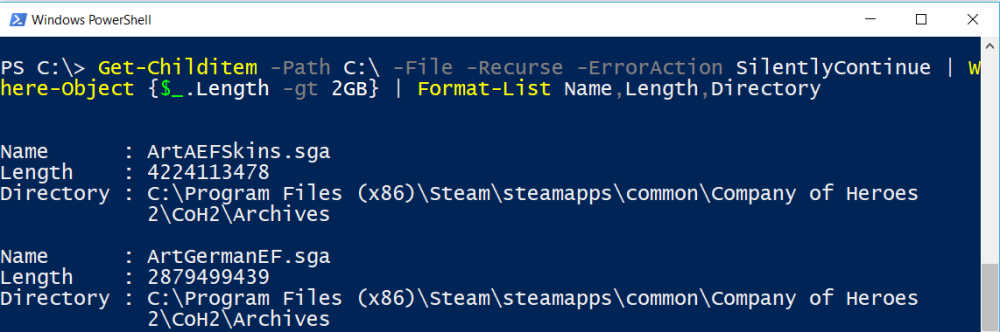
This PowerShell command quickly find the biggest files on your computer. It helps you identify what is using up disk space without manually searching through folders.
When you’d use this
- Disk space is running low
- A PC is slow due to a full drive
- Before clearing space or archiving data
- When File Explorer searches are taking too long
PowerShell command (copy and paste)
Get-ChildItem C:\ -Recurse -File |
Sort-Object Length -Descending |
Select-Object -First 10 Name, Length, FullName
What the output means
- Name – the file name
- Length – file size (in bytes)
- FullName – the full path to the file
The largest files appear at the top of the list.
Common mistakes to avoid
- Running this on the entire C: drive on very large systems (it can take time)
- Forgetting some folders may be restricted without administrator access
- Deleting files without confirming what they are used for
Efficiency tip (show sizes in GB)
Get-ChildItem C:\ -Recurse -File |
Sort-Object Length -Descending |
Select-Object -First 10 Name,
@{Name="Size (GB)";Expression={[math]::Round($_.Length / 1GB, 2)}},
FullName
This makes the results far easier to read and explain.
Why this improves efficiency
- Much faster than clicking through folders
- Shows real storage usage, not estimates
- Ideal for remote support and cleanup checks
- Easily adjusted to any drive or folder
Related PowerShell efficiency posts
- PowerShell Efficiency: The Fast Way to Manage Windows
- Check disk space in seconds using PowerShell
- Check when a Windows PC was last restarted
Related Posts
- PowerShell – The Fast Way to Manage Windows
- Check Disk Space in Seconds Using PowerShell
- Export PowerShell Results to CSV for Reporting
- Test if a Network Port Is Open Using PowerShell
- View IP and DNS Information Quickly Using PowerShell
- Find and Close a Stuck Application Using PowerShell
Filter Large Files by Type, Size, and Date
The basic command shows the largest files, but in practice you often need more control. You might want only video files over 500 MB, or documents you haven’t opened in years. PowerShell lets you filter by file type, minimum size, and last access date—making it easy to target exactly what needs attention.
Find files larger than a threshold
To find all files over 500 MB on your C: drive:
Get-ChildItem C: -Recurse -File | Where-Object { $_.Length -gt 500MB } | Sort-Object Length -Descending | Select-Object Name, @{Name="Size (GB)";Expression={[math]::Round($_.Length / 1GB, 2)}}, FullNameChange 500MB to whatever threshold matters for your cleanup. This finds candidates much faster than scrolling through File Explorer.
Find specific file types
To search only for video files (MP4, AVI, MKV) larger than 100 MB:
Get-ChildItem C: -Recurse -File -Include *.mp4, *.avi, *.mkv | Where-Object { $_.Length -gt 100MB } | Sort-Object Length -Descending | Select-Object Name, @{Name="Size (GB)";Expression={[math]::Round($_.Length / 1GB, 2)}}, FullNameReplace the extensions with whatever you’re hunting for: *.iso, *.psd, *.zip, or others.
Find files not accessed recently
This finds files untouched for two years (730 days)—often safe to archive or delete:
$cutoffDate = (Get-Date).AddDays(-730); Get-ChildItem C: -Recurse -File | Where-Object { $_.LastAccessTime -lt $cutoffDate } | Sort-Object LastAccessTime | Select-Object Name, LastAccessTime, FullNameAdjust -730 to any number of days you prefer. Always verify files before deleting or archiving.
Combine multiple filters
You can combine conditions to narrow results precisely. For example, find all temporary files (*.tmp) older than 90 days:
$cutoffDate = (Get-Date).AddDays(-90); Get-ChildItem C: -Recurse -File -Include *.tmp | Where-Object { $_.LastAccessTime -lt $cutoffDate }This precision prevents accidents when managing disk space on production machines or shared systems where deleting the wrong files can cause problems.