What this does
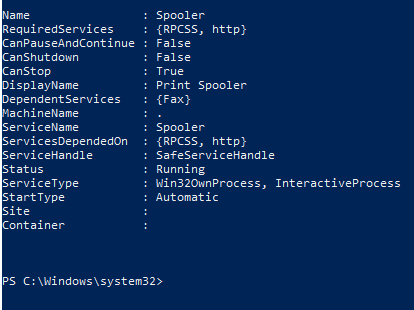
This PowerShell command shows which Windows services are currently running or stopped. It is a fast way to Check Running Services and confirm whether an important background service is working without opening the Services console.
When you’d use this
- An application will not start
- A feature depends on a background service
- You need to confirm a service is running
- You want a quick system health check
Step 1: View all services
Get-Service
This lists every Windows service and its current status.
Step 2: Check a specific service
Get-Service -Name wuauserv
This checks the Windows Update service.
Step 3: Start or restart a service
Start-Service -Name wuauserv
Or restart it:
Restart-Service -Name wuauserv
What the output means
- Running – the service is active
- Stopped – the service is not running
- No error message usually means the command worked
Common mistakes to avoid
- Restarting services without understanding their purpose
- Forgetting administrator rights may be required
- Assuming a running service means the application is healthy
Efficiency tip (filter only running services)
Get-Service | Where-Object {$_.Status -eq "Running"}
This reduces noise and shows only active services.
Why this improves efficiency
- Faster than opening
services.msc - Perfect for remote troubleshooting
- Reduces unnecessary restarts
- Helps isolate root causes quickly
Related PowerShell efficiency posts
- PowerShell Efficiency: The Fast Way to Manage Windows
- Find and close a stuck application using PowerShell
- Check when a Windows PC was last restarted
Related Posts
- PowerShell – The Fast Way to Manage Windows
- Check When a Windows PC Was Last Restarted
- Find and Close a Stuck Application Using PowerShell
- Pull Recent System Errors Using PowerShell
- Test if a Network Port Is Open Using PowerShell
- View IP and DNS Information Quickly Using PowerShell
Understanding Service Startup Types
Services don’t all behave the same way. Beyond running or stopped, each service has a startup type that controls when and how it activates. Understanding this distinction is essential when troubleshooting or tuning system performance.
To view a service’s startup type, use:
Get-Service -Name wuauserv | Select-Object Name, Status, StartType
This reveals three common startup types:
- Automatic – Windows starts the service when the system boots. Most essential services use this setting. Disabling an Automatic service can cause system instability or broken features.
- Manual – The service only starts when explicitly requested or when another service depends on it. Common for optional features or administrative tools that aren’t needed constantly.
- Disabled – The service cannot start unless you change this setting first. This prevents unwanted services from running, useful for features you’ve removed or don’t need.
To change a service’s startup type, use Set-Service:
Set-Service -Name wuauserv -StartupType Automatic
Valid values are Automatic, ManualAutomatic (delayed start), Manual, and Disabled. Delayed start spreads the workload during boot, reducing congestion.
Why startup type matters: If you restart a service set to Manual, it will stop again after reboot. If you need a service to remain active permanently, it must be Automatic. Conversely, disabling unnecessary Automatic services reduces boot time and resource usage significantly.
A practical example: Windows Update (wuauserv) runs on Automatic delayed start, meaning it begins after other essential services initialise. This prevents startup congestion. Setting it to immediate Automatic could slow your entire boot sequence.
Before modifying startup types, always verify the service’s purpose using Get-Service -Name ServiceName | Select-Object DisplayName, Description. Disabling critical services without understanding their role is a common cause of system problems.
Checking Service Logs and Error Codes
When a service fails to start, PowerShell shows only that it stopped — not why. To diagnose the root cause, you need to check the event logs where Windows records service failures, error messages, and diagnostic information.
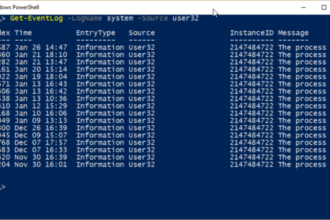
First, find the service error in the System log using the Service Control Manager source:
Get-EventLog -LogName System -Source "Service Control Manager" -Newest 50This retrieves the 50 most recent Service Control Manager entries. Look for entries matching your service name and check the EventID column — error codes starting with 7000–7999 indicate service-related failures.
To narrow the search to a specific service, filter by the event message:
Get-EventLog -LogName System -Source "Service Control Manager" | Where-Object {$_.Message -like "*ServiceName*"}Common error codes and what they mean:
- 1053 – Service did not respond to start or control request in time. Check if the application is hung or requires more startup time.
- 1054 – Service is disabled or has no enabled devices. Verify startup type and hardware availability.
- 1056 – The service does not have a process to execute. Verify the service binary path is correct.
- 1057 – The service runs under a specific account that lacks necessary permissions. Check the service account and user rights.
- 1058 – Service is disabled. Enable it through Services or PowerShell.
For more detail, check the Application log for errors from the application itself:
Get-EventLog -LogName Application -Newest 20 | Format-Table TimeGenerated, Source, EventID, MessageIf you find a 1056 error (invalid binary path), verify the service executable location:
Get-Service -Name ServiceName | Select-Object -Property Name, DisplayName, @{Name="Path";Expression={(Get-ItemProperty "HKLM:SYSTEMCurrentControlSetServices$($_.Name)").ImagePath}}This registry lookup shows the actual file path the service uses to start. If the path is incorrect or the file is missing, that explains the failure.
Using event logs dramatically speeds up troubleshooting compared to opening Event Viewer manually, and the diagnostic data is immediately actionable for repairs.