Skip to content

Tech Reviews & How-To Guides

Serverman | Tech Reviews | How-To Guides

Practical IT, Cybersecurity & AI — Explained Clearly

  • Home
    • Site Map
    • Contact Us
    • Privacy Policy
    • Cookie Policy (UK)
    • Affiliate Disclosure
    • Cookie Policy (EU)
  • Hardware
    • Keyboard and Mouse
    • ReMarkable
    • Plaud Note
    • Flipper Zero
    • YubiKey
    • Laptops
    • PC Case
    • Anker
    • Support
      • Business Support Plans
      • Fix Your Home Computer: Expert Help for £99.99
    • CPU
    • Hardware How To
    • Brother QL-700 Review – Best Label Printer for Home and Small Business
    • SanDisk Ultra Flair 128GB Review – Best USB 3.0 Flash Drive for Speed and Reliability
  • Software
    • PowerShell
    • DOS
    • VPN
      • VPN Comparisons
      • How VPNs Work
      • Does a VPN Really make you anonymous
    • Windows Calculator
      • Using the Windows Calculator
  • Server
    • NAS
    • Windows Server End of Life
  • Cyber Security
    • Virus & Malware
  • Artificial Intelligence
    • AI in Business
    • AI for Builders Merchants
    • AI for Electrical Wholesalers
    • AI For Wholesale Distribution
    • AI Guides
  • Web Hosting
  • Crypto
    • Crypto Wallet Security Tips: How to Keep Your Cryptocurrency Safe
    • What Is Crypto Mining? A Beginner’s Guide to How Bitcoin Are Mined
    • What Is a Crypto Wallet? Hot vs Cold Wallets Explained
    • How to Buy Cryptocurrency in the UK: A Beginner’s Step-by-Step Guide
    • What is Cryptocurrency? A Beginner’s Guide to Crypto
    • Crypto.com Review 2025: The Debit Card That Pays You in CRO
Sunday, February 22, 2026
Home / Software / Find and Close a Stuck Application Using PowerShell
  • PowerShell
  • Software

Find and Close a Stuck Application Using PowerShell

get process

Table of Contents

1. When you’d use this
2. Step 1: Find the running process
3. Step 2: Find a specific application
4. Step 3: Close the stuck application
5. What the output means
6. Common mistakes to avoid
7. Efficiency tip (force close if needed)
8. Why this improves efficiency
9. Related PowerShell efficiency posts

What this does
This PowerShell command lets you identify a running application and close a stuck application when it becomes unresponsive. It avoids a full reboot and is faster than opening Task Manager.


When you’d use this

  • An application has frozen
  • “Not responding” appears and will not close
  • Task Manager is slow or unavailable
  • You want to close a specific app quickly

Step 1: Find the running process

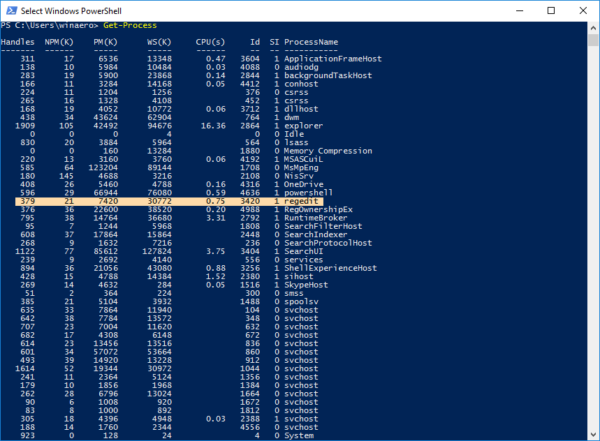
Get-Process

This lists all running applications and background processes.


Step 2: Find a specific application

Get-Process chrome

Replace chrome with the name of the application you want to find.


Step 3: Close the stuck application

Stop-Process -Name chrome

This immediately closes the application.


What the output means

  • If the command runs without errors, the process has been stopped
  • If you see an access error, administrator permissions may be required

Common mistakes to avoid

  • Stopping system processes you do not recognise
  • Forgetting to save work before closing an application
  • Using the wrong process name (check spelling carefully)

Efficiency tip (force close if needed)

Stop-Process -Name chrome -Force

Only use -Force if the application will not close normally.


Why this improves efficiency

  • Faster than restarting the PC
  • More precise than Task Manager
  • Ideal for remote support scenarios
  • Reduces unnecessary downtime

Related PowerShell efficiency posts

  • PowerShell Efficiency: The Fast Way to Manage Windows
  • Check when a Windows PC was last restarted
  • Check disk space in seconds using PowerShell
Tagged:applicationapplication crashapplicationsclose appsforced quit applicationfrozen applicationhow do i close a frozen app on windows 11how do i close stuck program in windowshow to close a stuck application using task managerhow to close stuck application in window windows 10how to close stuck program windowshow to force close a stuck program in windowshow to forced close stuck appshortcut key to close stuck appsstuck appsstuck apps on pcstuck on apple logowindows application stuck
Previous Article
find the biggest files

Find the Biggest Files on Your PC Using PowerShell

Next Article

Check Running Services Quickly Using PowerShell

PowerShell-Get-Service
Stuart Stafford

S Stafford is a UK-based IT professional and technology writer with over a decade of experience in server infrastructure, cybersecurity, and IT support. He runs Serverman, covering practical tech reviews and guides for UK businesses and home users.

Sign Up For Daily Newsletter

Stay updated with our weekly newsletter. Subscribe now to never miss an update!

[mc4wp_form]

Related Posts

Export PowerShell Results to CSV for Reporting
system errors
Pull Recent System Errors Using PowerShell
Test if a Network Port Is Open
Test if a Network Port Is Open Using PowerShell

Newsletter

Stay updated with our weekly newsletter. Subscribe now to never miss an update!

    • Affiliate Disclosure
    • Brother QL-700 Review – Best Label Printer for Home and Small Business
    • Checkout
    • Contact Us
    • Cookie Policy (EU)
    • Cookie Policy (UK)
    • Fix Your Home Computer: Expert Help for £99.99
    • My account
    • Privacy Policy
    • SanDisk Ultra Flair 128GB Review - Best USB 3.0 Flash Drive for Speed and Reliability
    • Shop
    • Site Map
    • Topics
      • Login to Our Discussion Community
      • New Topic
    • Welcome to the shopping Cart
    Copyright Serverman.co.uk © 2026 Serverman | Tech Reviews | How-To Guides
    Serverman | Tech Reviews | How-To Guides