Just bought a Plaud Note AI Voice Recorder? Here’s how to set it up for the first time, plus solutions to the most common problems users face.
Initial Setup
- Charge your device via USB-C until fully powered (≈2 hours).
- Download the Plaud App from the iOS App Store or Google Play.
- Pair via Bluetooth following the in-app prompts.
- Enable permissions for microphone and storage when requested.
- Test your first recording by pressing the hardware button once.
Common Troubleshooting Issues
1. Plaud Note Not Turning On
Check if the battery is charged. Hold the power button for 3–5 seconds. If unresponsive, try a different USB-C cable or power adapter.
2. No Sound or Poor Recording Quality
- Ensure the microphones are not covered by clothing or fingers.
- Stay within 1–3m of the speaker for best clarity.
- Update the Plaud app — firmware updates often improve mic performance.
3. Bluetooth Connection Fails
If pairing fails:
- Toggle Bluetooth off/on on your phone.
- Reset Plaud Note by holding the power button for 10 seconds.
- Reinstall the app if persistent.
4. Transcription Not Working
- Check your subscription plan — free accounts have limited hours.
- Ensure Wi-Fi or mobile data is active for cloud transcription.
- Update to the latest app version.
5. Storage Full
Plaud Note has 64GB of storage (~480 hours of audio). To clear space:
- Export files to the app or PC via USB-C.
- Delete old recordings you no longer need.
Maintenance Tips
- Keep the recorder in its protective case.
- Avoid extreme heat or moisture exposure.
- Update firmware regularly through the app.
Verdict
Most Plaud Note issues can be fixed with a quick reset, app update, or cable swap. With the right setup, it’s a reliable companion for lectures, meetings, and interviews.
See also: Plaud Note Full Review · 5 Ways to Use Plaud Note · Plaud Note Accessories
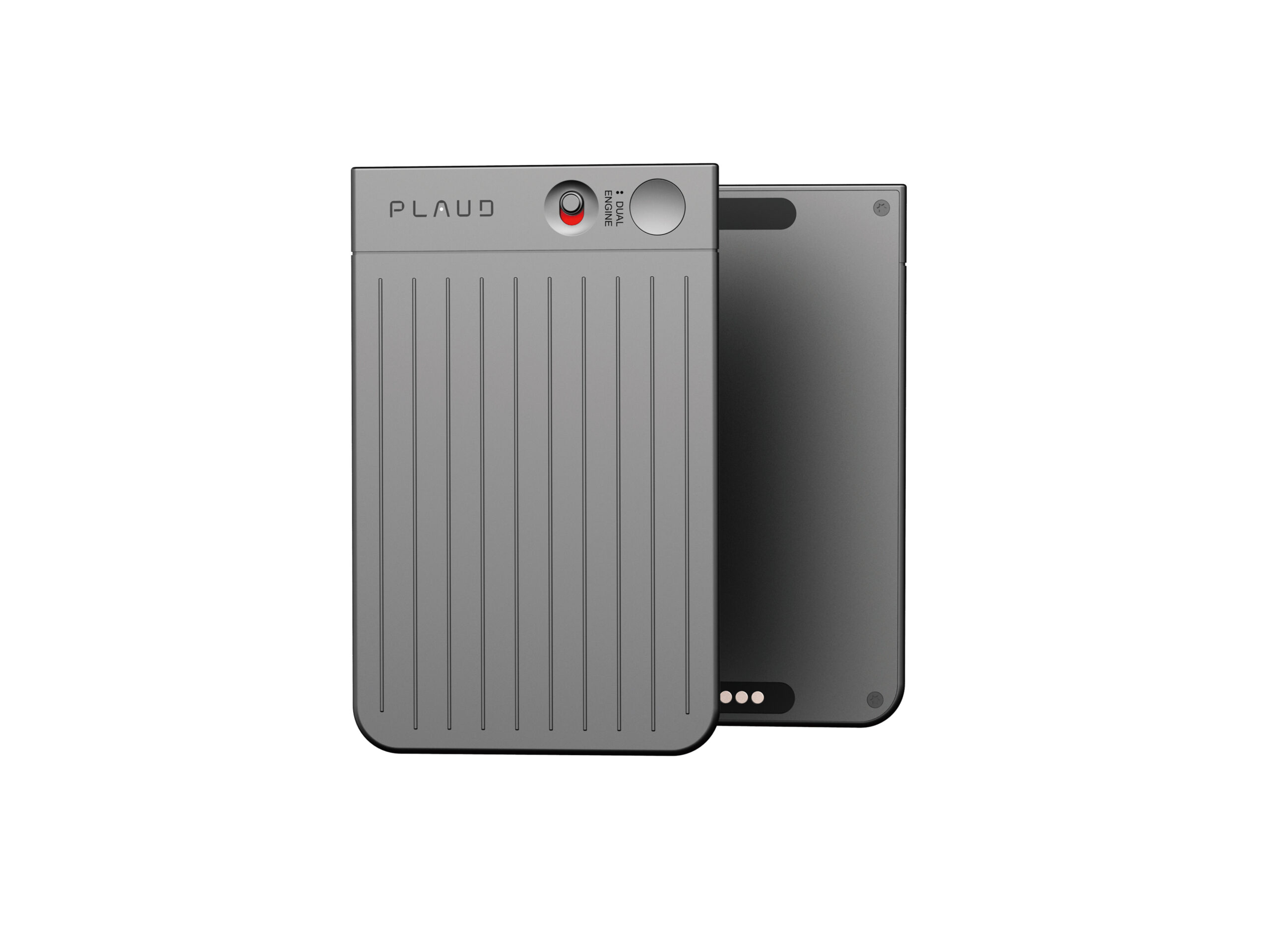
Plaud Note
Plaud Note Pro AI Voice Recorder, Transcribe & Summarize with AI, App Control, Note Taker for Meetings & Calls, Supports 112 Languages, Ultra-Slim w/InstantView Display, Case Included, Black
Buy Now →Affiliate disclosure: If you buy through links, we may earn a commission at no cost to you.
Related Posts
- Plaud Note AI Voice Recorder Review (2025)
- 5 Ways to Use the Plaud Note AI Voice Recorder in 2025
- Plaud Note Accessories & Subscriptions (2025 Guide)
- Plaud Note vs Phone Apps: Do You Need a Dedicated AI Recorder?
- Best AI Voice Recorders in 2025
Privacy, Data Security & Cloud Storage
Plaud Note handles sensitive recordings — meeting notes, lecture recordings, interviews — so understanding how your data is stored and processed is important.
Where Are Your Recordings Stored?
By default, audio files are stored locally on the Plaud Note’s 64GB storage, meaning they remain on your device until you explicitly export them. However, when you use the cloud transcription feature, your audio is sent to Plaud’s servers for processing. For users in the UK and EU, this is worth noting: recordings sent to the cloud are processed according to Plaud’s privacy policy, which you should review before transcribing sensitive material.
Keeping Recordings Private
If you record confidential information (client calls, sensitive meetings), disable cloud transcription in the app settings and keep files on the device only. Alternatively, export recordings to your computer via USB-C and delete them from the device immediately after. This way, you maintain full control over where your data lives and who can access it.
Regular Backups
Don’t rely solely on the device’s storage. Use the app’s export function to back up important recordings to your computer or cloud storage (Google Drive, OneDrive, Dropbox). This protects against device loss or malfunction and lets you store transcripts separately from raw audio files.
What Happens to Deleted Recordings?
When you delete a recording from Plaud Note, it’s removed from the device’s storage. However, if you’ve already uploaded it for transcription, that data may remain on Plaud’s servers temporarily. Check Plaud’s data retention policy if this concerns you — contact their support team to request deletion of cloud-processed data if needed.
Securing Your Plaud Account
Your Plaud account (linked to Apple ID or Google account) protects access to your transcriptions. Enable two-factor authentication on your underlying Apple or Google account, avoid sharing your Plaud login, and monitor your free transcription hours monthly so you don’t exceed your plan’s limits unexpectedly.
Maximising Transcription Accuracy
Getting high-quality transcriptions from your Plaud Note requires more than just pressing record. Here are practical steps to ensure the best possible output.
Choose the Right Transcription Tier
Plaud offers free transcription with limited hours per month, but upgrading to a paid subscription significantly improves accuracy. The free tier uses basic voice-to-text processing, whilst paid plans employ advanced AI models that better handle accents, background noise, and technical terminology. For professional use — meetings, lectures, interviews — the paid option is worth the investment.
Optimal Recording Conditions
Your transcription is only as good as your audio. Keep the Plaud Note 15–30cm away from the speaker’s mouth for interviews and one-to-one conversations. In group settings such as meetings or lectures, position it centrally to capture all speakers equally. Avoid rooms with hard surfaces that echo, and minimise background noise such as fans, traffic, or rustling papers.
Language & Dialect Settings
Before recording, set the correct language and dialect in the app. If you’re transcribing British English conversations, ensure “English (UK)” is selected, not US English. The app also supports multiple languages simultaneously, which is useful if your meeting involves bilingual participants. Selecting the correct language upfront prevents the AI from misinterpreting technical terms or proper nouns.
Review & Edit Transcripts
Plaud’s transcriptions are typically 95–98% accurate, but always proofread for names, product names, and technical terms. The app allows inline editing, so you can correct errors immediately. For important documents — contracts, research interviews, legal matters — manually reviewing the transcript is essential before sharing or archiving.
Export in the Right Format
Plaud supports multiple export formats: plain text, PDF, Word, and SRT (for video subtitles). Choose based on your use case. Word format preserves timestamps, making it easy to jump back to specific moments in the audio. PDF is better for sharing read-only transcripts. If you’re creating videos, SRT format syncs transcription directly to your footage.