
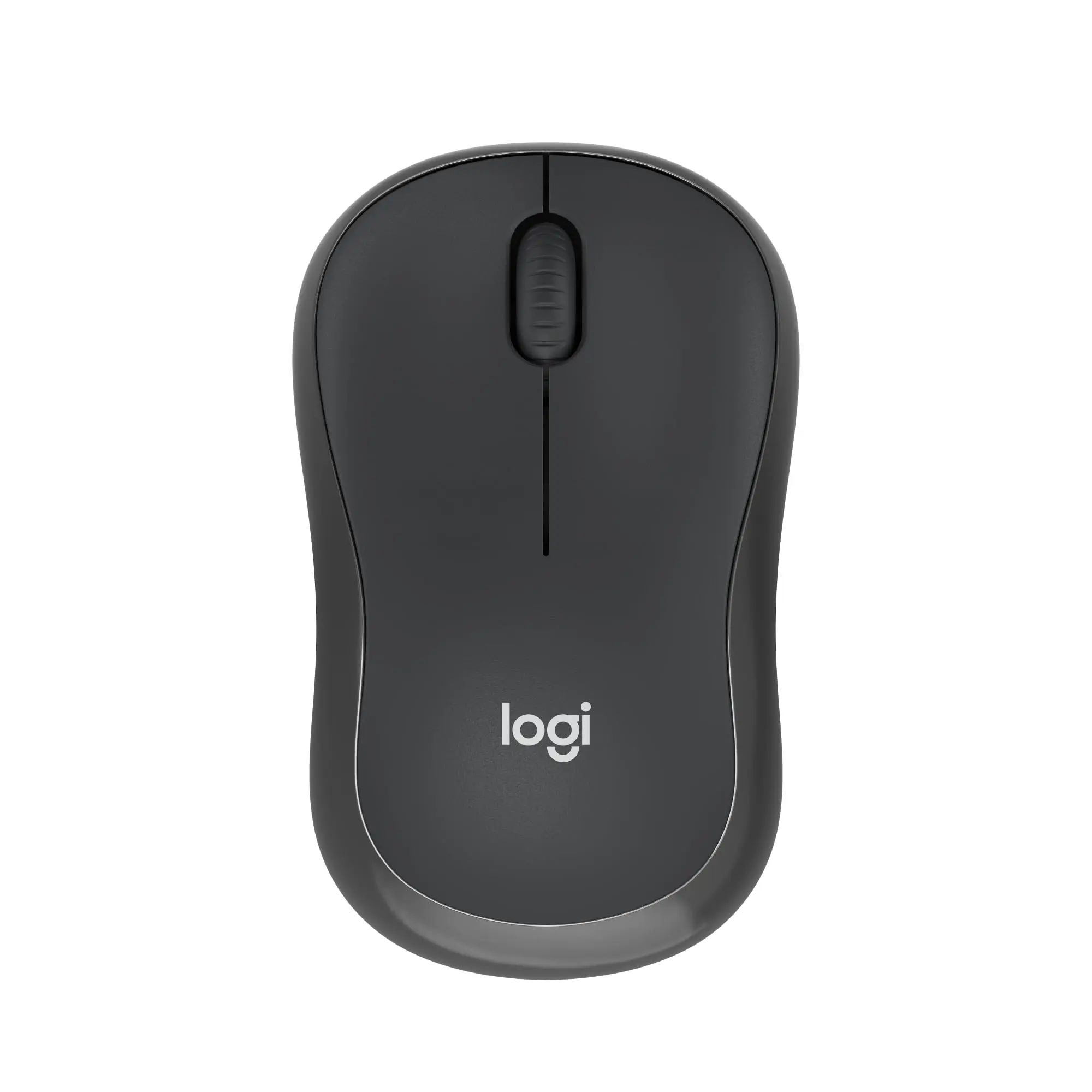
Keyboard & Mouse Quick Fixes
Few things are more frustrating than sitting down to work and finding your keyboard and mouse not connecting. Whether you use a wireless combo like the Logitech MK270 or standalone devices like the M185 or M240 Silent Bluetooth, connectivity issues can usually be solved with a few simple steps. This guide walks you through quick troubleshooting fixes for 2025.Step 1 – Check the Power and Batteries
- Ensure the devices are powered on (look for a switch on the bottom of the mouse or keyboard).
- Replace old batteries with fresh ones—many issues come down to weak battery power.
- On rechargeable models, confirm the device is charged via USB-C or micro-USB cable.
Step 2 – Check the USB Receiver or Bluetooth Pairing
- For 2.4GHz USB receivers (e.g., M185, MK270): Reinsert the dongle into another USB port. Avoid hubs—plug directly into the computer.
- For Bluetooth devices (e.g., M240): Ensure Bluetooth is turned on, remove the device from your system, and re-pair it from scratch.
- Try moving closer to the computer to rule out signal interference.
Step 3 – Update Drivers and Software
- Check Windows Update or macOS Software Update for input driver updates.
- Install or update Logitech Options/Logi+ software if supported by your model.
- On Chromebooks, ensure your ChromeOS version is current.
Step 4 – Reset the Devices
- Turn both devices off and back on.
- On combos like the MK270, power-cycle both the keyboard and mouse.
- Hold pairing buttons (on Bluetooth models) for a few seconds to reset connection.
Step 5 – Advanced Troubleshooting
- Check for radio interference from other 2.4GHz devices (Wi-Fi routers, cordless phones).
- Try a different computer to confirm the issue is with the device, not the system.
- If nothing works, contact Logitech support for device replacement under warranty.
Device-Specific Tips
- Logitech MK270 Combo – If neither device connects, the dongle may be faulty. Try pairing with another Logitech receiver if you own one.
- Logitech M185 – If unresponsive, swap batteries and replug the receiver directly into the PC.
- Logitech M240 Silent Bluetooth – Delete the pairing in your OS Bluetooth settings and re-add the device.
When to Replace Your Keyboard or Mouse
If you’ve tried all the steps and your devices still fail, it may be time for a replacement. Logitech budget models like the M185 often last years, but eventually wear out. Investing in a fresh set like the MK270 combo or the quieter M240 Bluetooth mouse can save hours of frustration.Related Reading
- Best Keyboard & Mouse Combos 2025 Guide
- Logitech M185 vs M240 Comparison
- Why I Recommend the M185 Kit
Related Posts
- Best Keyboard and Mouse Combos (2025 Guide)
- Logitech MK270 Review – Hassle Free, Just Works
- Logitech M185 Review – Best Budget Wireless Mouse 2025
- How to Replace the Battery in a Logitech M185 Wireless Mouse
- Logitech G305 Review (2025) – Best Wireless Gaming Mouse?
- Why I Recommend the Apple Magic Mouse
USB 3.0 Interference & Port Selection
If you’re using a 2.4GHz wireless receiver (like the MK270 or M185), your choice of USB port matters more than you might think. USB 3.0 and 3.1 ports emit strong radio interference that can seriously disrupt 2.4GHz wireless signals—the exact frequency your keyboard and mouse use to communicate with your computer.
This is one of the most overlooked connectivity causes, yet it’s incredibly common. Your computer may have multiple USB ports, but they’re not all equal:
- USB 2.0 ports: Safe to use. Typically black or white ports, these emit minimal radio interference.
- USB 3.0 and 3.1 ports: Blue or red ports that emit strong radio noise directly on the 2.4GHz band.
- USB-C ports: Often USB 3.1 specification, which means they’re also problematic for wireless receivers.
How to identify your ports: Look at your PC’s back panel or side ports. USB 3.0+ ports are usually colour-coded (bright blue inside, or marked with “SS” for SuperSpeed). If you’re unsure, check your motherboard manual or open Device Manager to confirm which ports are USB 2.0 versus 3.0.
The fix: Plug your wireless receiver into a USB 2.0 port instead. If your laptop only has USB 3.0 ports, try inserting the receiver into a USB port that’s positioned far from your other devices—ideally on the opposite side of your computer from your Wi-Fi antenna and any other USB 3.0 peripherals.
Some users also report success using a USB 2.0 hub (which provides USB 2.0 ports even when plugged into USB 3.0) or a short USB extension cable to physically distance the receiver from your computer’s main circuit board.
A practical test: If your keyboard and mouse work fine when you test them on your mate’s machine, but fail on yours, interference is likely the culprit. Try moving the receiver to a different USB port—often that’s all it takes to restore full connectivity.
This single tip solves connectivity issues for many users who’ve already tried driver updates and device resets without success.


