The Anker 737 GaNPrime is a reliable 120W USB-C charger, but like any multi-port charger, it can occasionally behave unexpectedly. This guide covers the most common issues and how to fix them.
Slow Charging
Slow charging is the most frequently reported issue with the Anker 737, and it almost always comes down to one of these causes:
Wrong port or cable
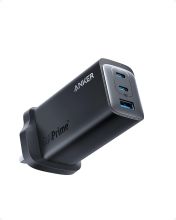
- Use the USB-C1 or USB-C2 ports for laptops — these are the high-power ports that support up to 100W output
- USB-C3 and the USB-A port deliver lower wattage and are better suited to phones and accessories
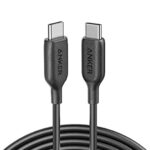
- Use a cable rated for at least 100W — the included Anker cable is suitable, but many third-party cables cap at 60W or lower
Device does not support USB Power Delivery
Some older devices use proprietary fast charging (Qualcomm Quick Charge, for example) rather than USB-PD. The Anker 737 uses USB Power Delivery — if your device does not support PD, it will charge at standard speed regardless of which charger you use.
Multiple devices plugged in
When all four ports are in use simultaneously, the 737 splits its 120W budget across all connected devices. Charging speeds will drop. For fastest laptop charging, plug in on USB-C1 with nothing else connected.
Overheating
GaN chargers run warmer than traditional chargers — this is normal. The Anker 737 will feel noticeably warm to the touch under full load. However, if it becomes too hot to hold or you notice a burning smell, take action:
- Unplug immediately and allow it to cool down before using again
- Do not use in enclosed spaces such as bags, drawers, or between furniture
- Avoid using in direct sunlight or ambient temperatures above 35°C
- Check the cable — a faulty or under-rated cable can cause heat build-up at the connector
- If overheating persists in normal conditions, contact Anker support — the charger may be faulty
Not Charging Multiple Devices Properly
The 737 dynamically distributes power depending on what is connected. Understanding the power split helps:
- One laptop (USB-C1 only): up to 100W
- Two USB-C devices: typically 65W + 45W or similar split
- All four ports in use: power is distributed across all — laptop may receive 65W rather than 100W
If a device is not charging at all despite being plugged in, try a different port or unplug other devices to give it more power priority.
Compatibility Issues
MacBook not charging at full speed
MacBook Pro models with M-series chips can accept up to 140W via USB-C (140W MagSafe on some models). The Anker 737 caps at 100W on USB-C1, which is sufficient for most tasks but may not keep up if you are gaming or running intensive workloads while charging. This is a hardware limitation, not a fault.
Charging light not coming on
Some devices do not show a charging indicator when receiving power via USB-PD — this is a device behaviour, not a charger issue. Check your device’s battery level directly to confirm charging is happening.
USB-A device not working
The USB-A port on the 737 does not support fast charging — it outputs standard 5V/2.4A. It is suitable for accessories, keyboards, and slow-charging phones, but not for rapidly charging devices that support Quick Charge.
Resetting the Charger
If the charger behaves unexpectedly, a simple reset often resolves it:
- Unplug all connected devices
- Unplug the charger from the wall
- Wait 30 seconds
- Plug back in and reconnect devices one at a time
Warranty and Support
The Anker 737 comes with an 18-month warranty as standard. Anker’s UK support team can be reached via their website. If the charger has developed a fault — not charging at rated speed, overheating in normal conditions, or physical damage to the ports — contact Anker directly for a replacement.
Related Guides
- Anker 737 Review — Is It Worth Buying?
- Anker 737 vs 735 — Which GaNPrime Should You Buy?
- Best USB-C Chargers for MacBook Pro
Maintaining Your Charger’s USB Ports and Cables
The Anker 737’s USB ports and cable connections are where most wear occurs over time. Proper care extends the charger’s lifespan and prevents many of the charging issues described above.
Connector care: USB-C and USB-A connectors degrade with repeated insertion and removal. Minimise unnecessary plugging and unplugging — if you keep devices charged overnight, leave them connected rather than removing and reconnecting throughout the evening. When you do disconnect, pull straight out without twisting or angling the connector; applying side pressure can loosen the port. If a port feels loose or a cable doesn’t fit snugly, stop using it immediately and contact Anker support — a loose connection creates friction and heat, which can damage both the charger and your device’s battery.
Cable storage and handling: Coil cables loosely around your hand or use a proper cable organiser rather than wrapping them tightly. Tight coiling can damage the internal conductors, particularly near the connector where the cable is most vulnerable. Do not bend USB-C or USB-A connector heads at sharp angles — the internal pins can crack. Store cables in a cool, dry place away from direct sunlight; heat and UV exposure degrade the outer sheath and internal insulation over time.
Identifying cable and connector damage: If a cable feels soft or spongy (indicating the insulation is breaking down), the connector wobbles, or you notice discolouration around the connector body, replace the cable immediately. Damaged cables are a common source of charging failures, overheating, and even device battery damage. Always use Anker-certified replacement cables or equivalent-rated alternatives certified for at least 100W.
Cleaning the ports: Dust and lint accumulate inside USB ports over time, particularly the USB-C ports which have narrow contact points. Every two to three months, use a dry cotton bud or soft brush to gently clear debris from inside the ports. Never use liquid cleaners, compressed air (which can force dust deeper), or insert metal objects. Clean ports ensure good electrical contact and prevent false “not charging” errors caused by oxidation or poor connectivity.