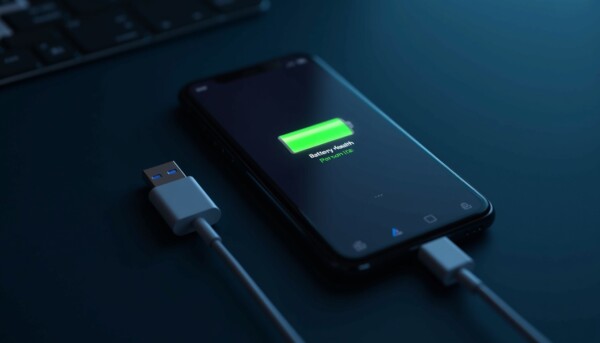
If your iPhone used to last all day but now needs a charge by lunchtime, you are not imagining it. Battery drain is one of the most common complaints iPhone users raise, and in most cases there are straightforward settings changes that make a real difference. This guide walks through every practical fix, from checking your battery’s condition to disabling the background processes quietly consuming power.
1. Check Your Battery Health First
Before changing any settings, find out what you are actually working with. Go to Settings > Battery > Battery Health & Charging. The percentage shown is your battery’s maximum capacity relative to when it was new.
Here is what the numbers mean in practice:
- 100% – 90%: Battery is in good condition. If you are experiencing drain at this level, the cause is almost certainly a software or settings issue.
- 89% – 80%: Noticeable reduction in runtime is normal. You may find the battery drains faster under heavy use.
- Below 80%: Apple considers this significantly degraded. iOS may disable performance optimisation features, and daily battery life will be meaningfully shorter. Replacement is worth considering at this point.
If your battery health is above 80% but drain is still poor, work through the steps below — the problem is almost always fixable without replacing anything.
2. Find Out Which Apps Are Draining Your Battery
Go to Settings > Battery and scroll down. iOS shows you a breakdown of battery usage by app over the last 24 hours or the last 10 days. Tap any app to see how much of that usage was on-screen versus in the background.
An app showing significant background usage when you rarely open it is a red flag. Social media apps, navigation apps, and streaming services are frequent offenders. Once you know which apps are the culprits, the following steps will help you rein them in.
3. Disable Background App Refresh
Background App Refresh allows apps to update their content while you are not using them. For most apps, this is unnecessary and quietly drains the battery throughout the day.
Go to Settings > General > Background App Refresh. You can disable it entirely or turn it off selectively for individual apps. Keep it enabled for apps where up-to-date content genuinely matters to you — a navigation app or a messaging app you rely on, for example — and switch everything else off.
4. Review Location Services
Location Services is one of the largest hidden drains on iPhone battery life. Many apps request location access and then continue checking your position even when you are not using them.
Go to Settings > Privacy & Security > Location Services. For each app you see listed, the options are Never, Ask Next Time, While Using the App, and Always. Change any app set to Always to While Using the App unless you have a specific reason for it to track you continuously. Maps and navigation apps are a legitimate exception, but most others are not.
5. Reduce Screen Brightness and Enable Auto-Brightness
The display is consistently one of the largest consumers of battery power on any smartphone. Running your iPhone at full brightness all day will noticeably reduce how long the battery lasts.
Swipe down to open Control Centre and drag the brightness slider down to a comfortable level. More importantly, enable Auto-Brightness so iOS adjusts the screen automatically based on ambient light. Go to Settings > Accessibility > Display & Text Size and toggle Auto-Brightness on. This single change can have a meaningful impact on daily battery life, particularly if you frequently use your phone outdoors.
6. Use Low Power Mode When You Need Battery to Last
Low Power Mode is a quick fix that reduces background activity, lowers screen brightness, and disables some visual effects to extend battery life. iOS prompts you to enable it at 20%, but you can switch it on at any time via Settings > Battery > Low Power Mode, or by adding it to your Control Centre.
It is particularly useful when you know you will be away from a charger for an extended period. The trade-off is slightly slower performance and delayed background updates, but for most day-to-day tasks you will not notice a difference.
7. Switch Email from Push to Fetch
Push email means your iPhone maintains a constant connection to the mail server, ready to receive new messages the instant they arrive. This is convenient but uses more battery than necessary for most people.
Go to Settings > Mail > Accounts > Fetch New Data. Turn off Push and instead set accounts to Fetch on a schedule — every 15 or 30 minutes is reasonable for most users, or set it to Manual if you prefer to check email on your own terms. If you have multiple email accounts configured, apply the change to each one individually.
8. Disable Raise to Wake
Raise to Wake lights up the screen every time you pick up your phone, even when you only intend to move it from one surface to another. Over the course of a day, those brief screen activations add up.
Go to Settings > Display & Brightness and toggle Raise to Wake off. You can still wake the screen by tapping it or pressing the side button. On newer iPhone models with an Always-On Display — currently the iPhone 14 Pro and later — you can disable that feature in Settings > Display & Brightness > Always On if you are prioritising battery life over convenience.
9. Tidy Up Widgets and Live Activities
Widgets on your Home Screen and Lock Screen refresh periodically in the background. Live Activities — the dynamic notifications that show real-time updates such as sports scores, delivery tracking, or ride-sharing progress — also consume power while active.
Remove widgets you do not actively use by pressing and holding on the Home Screen and selecting Edit. For Live Activities, swipe left on them in the Dynamic Island or on the Lock Screen to dismiss them once they are no longer needed. The fewer active elements your phone is updating continuously, the longer the battery lasts.
10. When to Replace the Battery
Apple’s official threshold for battery replacement is 80% maximum capacity. Below this point, the battery is considered worn and iOS may limit peak performance to prevent unexpected shutdowns. If your Battery Health reading is below 80% and your iPhone is otherwise in good working order, a battery replacement is almost always the right call.
Apple offers battery replacements through the Apple Store, Apple Authorised Service Providers, and — on iPhones that support it — through the Self Repair programme. Costs vary by model but are typically significantly cheaper than upgrading to a new device. If your iPhone is out of warranty, third-party repair shops can also fit replacement batteries, though it is worth checking they use genuine or high-quality compatible cells.
Summary: Quick Wins for Better Battery Life
- Check Battery Health in Settings and note your capacity percentage.
- Review per-app battery usage and identify the biggest consumers.
- Turn off Background App Refresh for apps that do not need it.
- Set Location Services to While Using for all but essential apps.
- Lower screen brightness and enable Auto-Brightness.
- Enable Low Power Mode when you need battery to last longer.
- Switch email accounts from Push to Fetch or Manual.
- Disable Raise to Wake and Always-On Display if present.
- Remove unused widgets and dismiss Live Activities promptly.
- Replace the battery if capacity has dropped below 80%.
Most users who work through this list find that battery life improves noticeably, often dramatically. The biggest culprits tend to be Background App Refresh, Location Services set to Always, and a degraded battery — address those three first and you are likely to see an immediate difference.