Flipper Zero Wi-Fi Dev Board 2026: What’s Changed and How to Use It Safely
The Wi-Fi Dev Board has become one of the most popular accessories for the Flipper Zero, and the 2026 update brings major improvements in speed, stability, and compatibility. If you’re using the board for the first time or upgrading from an older version, this guide explains what has changed, how to use it safely, and what practical tasks you can perform at home.
The Wi-Fi Dev Board is designed for diagnostics, education, wireless learning, and device development—not for connecting to or interacting with networks you don’t own.
What’s New in the Wi-Fi Dev Board for 2026
The 2026 firmware update gives the board:
A faster ESP32 chipset
Improved Bluetooth-to-Wi-Fi bridging
More stable over-the-air updates
Better error handling
Lower power consumption
Improved integration with the latest Flipper OS
These changes make the board more responsive and reliable when connected to your Flipper Zero.
What the Wi-Fi Dev Board Can Do in 2026
The Dev Board is used as an extension module and enables tasks such as:
Scanning your home Wi-Fi network for signal strength
Checking channel congestion
Identifying broadcast types (2.4GHz / 5GHz)
Testing your router placement
Monitoring your own IoT device broadcasts
Using the board as a Flipper Zero remote updater
These tasks help you understand wireless behaviour without accessing any private network data.
How to Connect the Dev Board to Your Flipper Zero
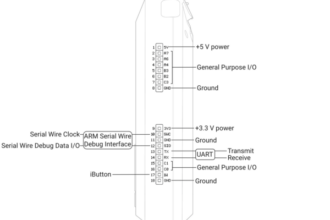
Attach the board to the GPIO connector on your Flipper Zero
Power it on
Open the GPIO menu on the Flipper
Select Wi-Fi Dev Board
Confirm the connection
Once connected, the Flipper Zero will detect the board automatically and provide a list of compatible tools.
How to Update the Wi-Fi Dev Board Firmware in 2026
Keeping the board updated ensures full compatibility:
Open the Flipper Mobile App
Go to Firmware
Choose Wi-Fi Dev Board Firmware
Tap Update
Wait for the process to finish
The 2026 update includes improved error recovery, meaning failed updates can automatically restart without bricking the board.
Safe Ways to Use the Wi-Fi Dev Board at Home
The Dev Board is designed for learning and diagnostics. Here are safe, legal, and helpful uses:
Checking if your Wi-Fi router has channel conflicts
Spotting weak signal zones in your home
Understanding which devices broadcast Bluetooth advertisements
Analysing Wi-Fi noise in busy environments
Testing how far your home Wi-Fi signal reaches (coverage mapping)
Troubleshooting smart home devices that rely on BLE/Wi-Fi pairing
These tasks help you improve home connectivity and understand your wireless environment.
What the Wi-Fi Dev Board Cannot Do
It cannot access Wi-Fi passwords
It cannot decode encrypted traffic
It cannot bypass Wi-Fi authentication
It cannot interact with networks you do not own
The board is strictly for scanning and analysing your own wireless environment.
Using the Dev Board as a Remote Firmware Uploader
One of the most useful new features in 2026 is the remote firmware bridge. This allows you to update your Flipper Zero wirelessly:
Enable the Dev Board Wi-Fi mode
Open the Flipper Mobile App
Select wireless update
Choose your Flipper device
This is especially helpful if you use your Flipper Zero frequently and prefer cable-free updates.
Using the Wi-Fi Dev Board for IoT Device Diagnostics
With so many homes filled with smart devices in 2026, the Dev Board is now a powerful tool for identifying:
If your IoT device is broadcasting correctly
Whether BLE pairing mode is active
How often your device transmits
If the device has connection issues
This is valuable for home troubleshooting and smart home optimisation.
Common 2026 Issues and Fixes
If the board does not connect:
Ensure your Flipper firmware is up to date
Check the GPIO pins for proper alignment
Restart the Dev Board
Update the Dev Board firmware
If Wi-Fi scanning is inconsistent:
Move closer to your router
Disable low-power mode on the Dev Board
Restart the Flipper Zero to clear cached data
The 2026 firmware has reduced most connection issues, but these steps resolve the remaining common problems.
Final Thoughts
The Wi-Fi Dev Board in 2026 is more powerful, stable, and capable than ever. With its improved chipset, enhanced integration, and safer scanning tools, it is the ideal companion for anyone using the Flipper Zero for learning, home diagnostics, or smart device troubleshooting. It does not interact with networks you don’t own, but it gives you the insight needed to improve your home setup and understand how modern wireless systems work.
Related Posts
- Flipper Zero – Complete Overview
- Flipper Zero Step-by-Step Guide (2026)
- Is the Flipper Zero WiFi Devboard Worth It?
- Flipper Zero Bluetooth (BLE) Guide (2026)
- Flipper Zero GPIO Guide (2026)
- Flipper Zero App Hub 2026 – Best New Apps Worth Installing
Troubleshooting Common Wi-Fi Dev Board Issues
Even with the improved stability of the 2026 update, connection issues can occasionally occur. Here are the most common problems and how to resolve them.
The Dev Board is not detected by your Flipper Zero
First, check the GPIO connector is fully seated. Push the board firmly onto the 14-pin connector—you should hear a small click. If it’s loose, the Flipper may not recognise it. Power off the Flipper, reseat the board, and power on again. If detection still fails, try rebooting the Flipper by holding the back button for 10 seconds.
The Wi-Fi Dev Board firmware update fails or stalls
This typically happens if your Flipper’s battery is too low. Charge to at least 75% before attempting a firmware update. Ensure you remain connected to your Flipper during the update—walking away or placing it in a bag can interrupt the connection. If an update genuinely fails, the 2026 board will not brick; you can attempt the update again immediately. Never force-restart the Flipper during an active update.
Scans are returning no results or incomplete data
Move away from microwave ovens, cordless phones, and other 2.4GHz sources—they create significant noise that masks weak signals. If you’re in a dense urban area with many overlapping networks, try scanning at different times or locations within your home. For 5GHz scans, move closer to your router, as 5GHz has much shorter range.
The board overheats during extended use
The ESP32 chipset can generate heat during continuous scanning. This is normal behaviour, not a fault. If the board becomes uncomfortably hot to touch, disconnect it and allow 10–15 minutes to cool. You do not need to use the Dev Board continuously; break scanning sessions into 20–30 minute blocks.
Your Flipper freezes when the Dev Board is connected
Disconnect the board and update your Flipper OS to the latest version. Check that your GPIO port is clean—dust or debris can cause intermittent shorts. Gently wipe the connector pins on the Flipper with a dry, lint-free cloth, then reseat the board.